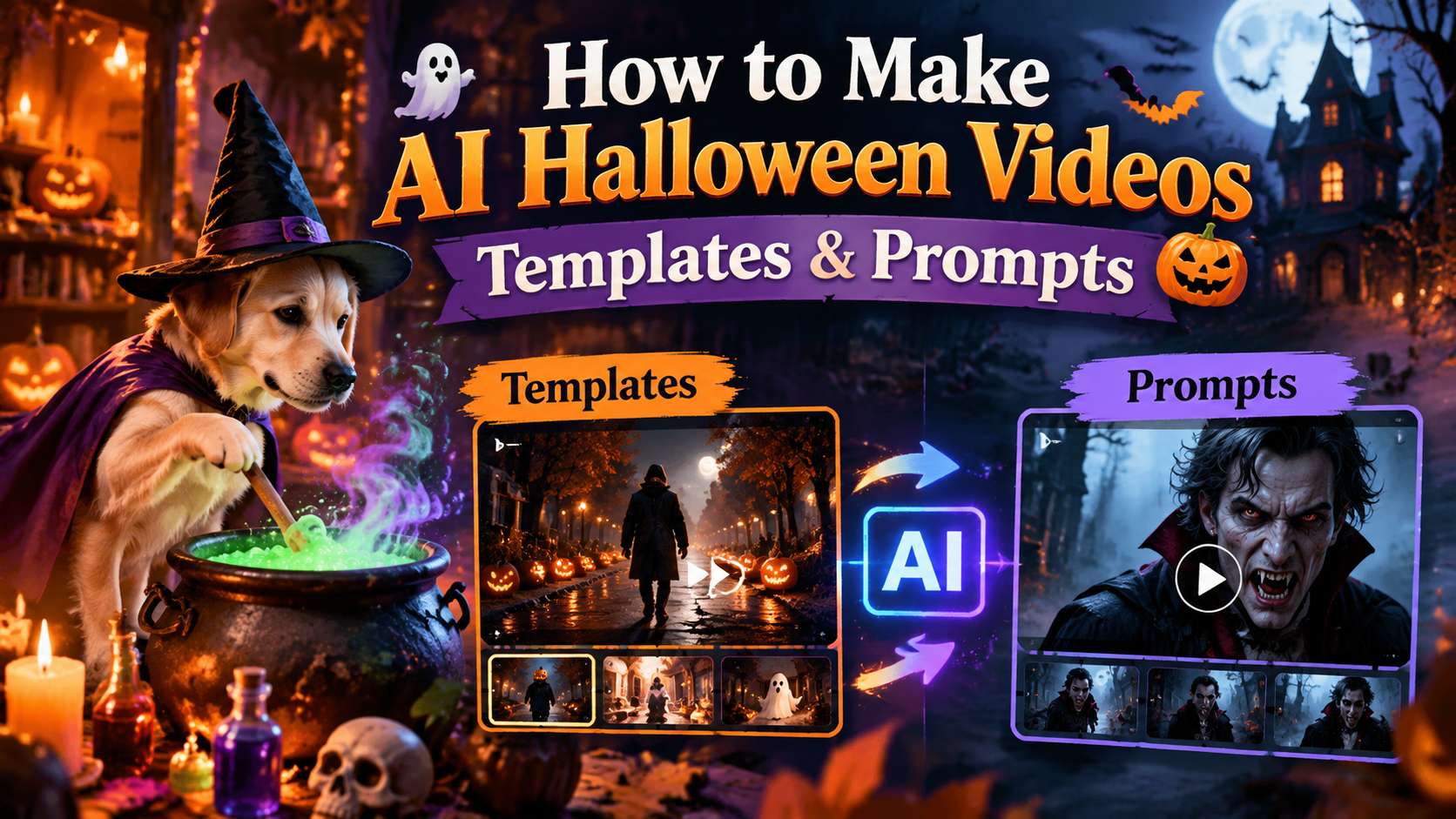

What Halloween Videos Are Trending on Social Media?
Wondering which Halloween video trends are worth recreating in 2026? Spooky transformations, costume transitions, and Thriller-inspired zombie dances stand out with iconic moves and fun moments to share with friends.
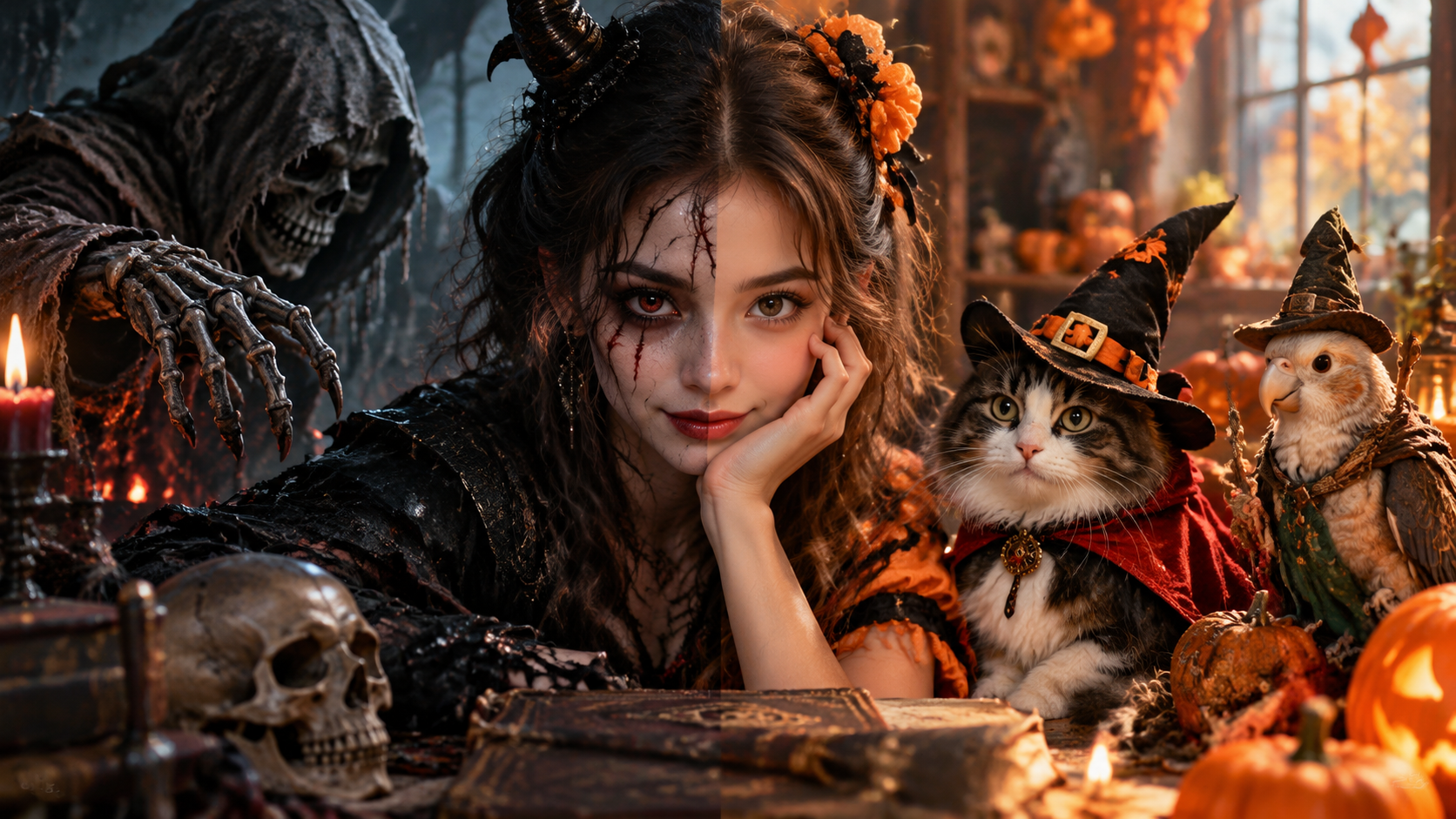
Many of these trends can be recreated without elaborate costumes, filming setups, or hours of editing. With AI Halloween effects and image-to-video tools, you can turn photos and prompts into spooky Halloween scenes in just a few steps.
Whether you're recreating a viral trend or coming up with a playful prank for your friends, a good AI Halloween video generator can help you:
-
Save time on Halloween videos: Create spooky content faster without spending hours on editing.
-
Bring amazing ideas to life: Turn simple concepts into creative Halloween scenes and stories.
-
Explore more Halloween trends: Experiment with different effects, styles, characters, and seasonal ideas.
-
Create with confidence: Make engaging Halloween content even if you're new to video creation.
Step-by-Step: How to Make an AI Halloween Video With AI?
This guide covers two methods: ready-made effects, which apply preset animations to your uploaded photo, and custom prompt generation, which turns your written descriptions into videos. Follow the steps below to get started with your Halloween project.
Before making your first Halloween video, sign up for a new AIReel account and log in to access various AI video creation features.
Method 1: Use an AI Halloween Video Template
If you want to follow a popular AI Halloween trend without coming up with a concept or writing prompts from scratch, a ready-made Halloween video template is an easy way to try.
Step 1: Choose a Halloween Video Template
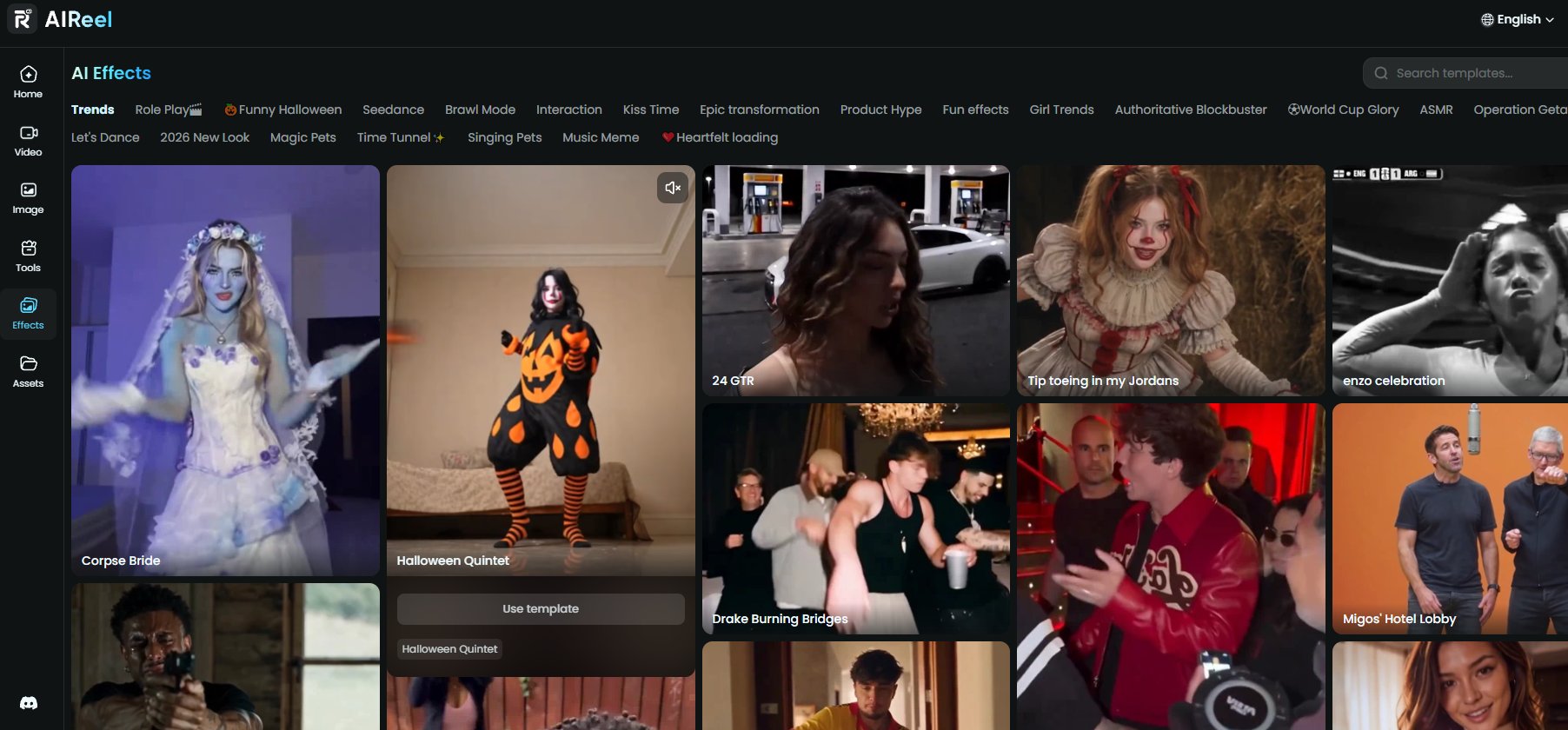
Go to the AI Effects page and search for Halloween templates. Choose an effect that matches the style or trend you like.
Click “Use This Template” to open the template page. For this example, we’re using Halloween Quintet, a Halloween dance-and-costume template.
Step 2: Upload Your Photo
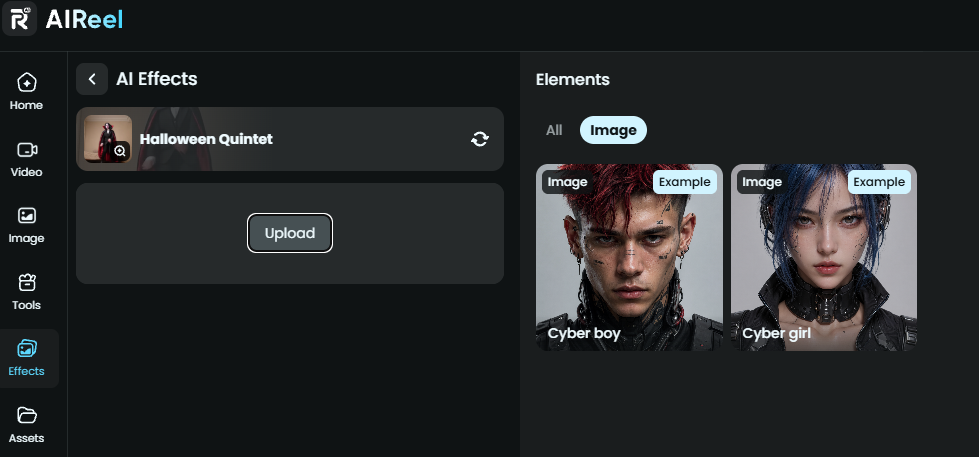
Upload a clear photo that you want to use for the Halloween video. You can upload a photo directly from your computer or select one you've previously prepared in Elements. For the best result, choose an image with a clear subject and enough visible details for AI to recognize and animate naturally.
Step 3: Generate Your Halloween Video
Make sure you have enough AI credits in your account. Once your photo is uploaded, click “Generate” to apply the Halloween Quintet effect. AIReel will animate your character and create the Halloween video based on the selected template’s settings.
Method 2: Animate a Halloween Photo With a Prompt
Applying custom prompts in the process allows you to turn a specific person, pet, or character into a Halloween video more easily while giving you more control over the actions and atmosphere.
Step 1: Open the Text/Image-to-Video Tool and Set Your Options
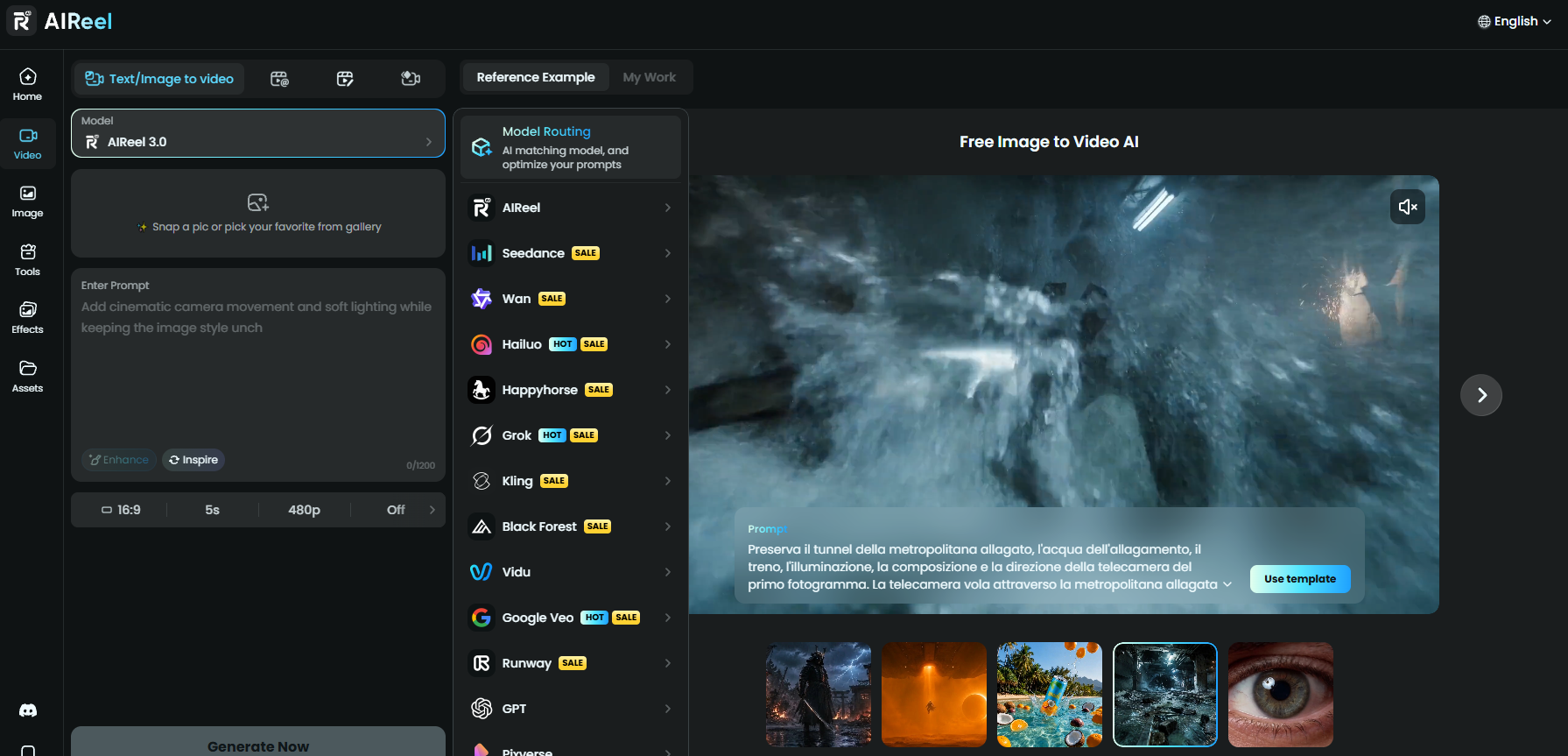
Go to the Text/Image to Video page in AIReel and prepare the image. Then, select the AI model, aspect ratio, duration, and resolution you want, and decide whether to enable AI Sound.
Good to Know About AI Sound:
When enabled, AI Sound allows the model to automatically generate audio that matches your prompt and video scene. You can also include specific audio requirements in your prompt to guide the results.
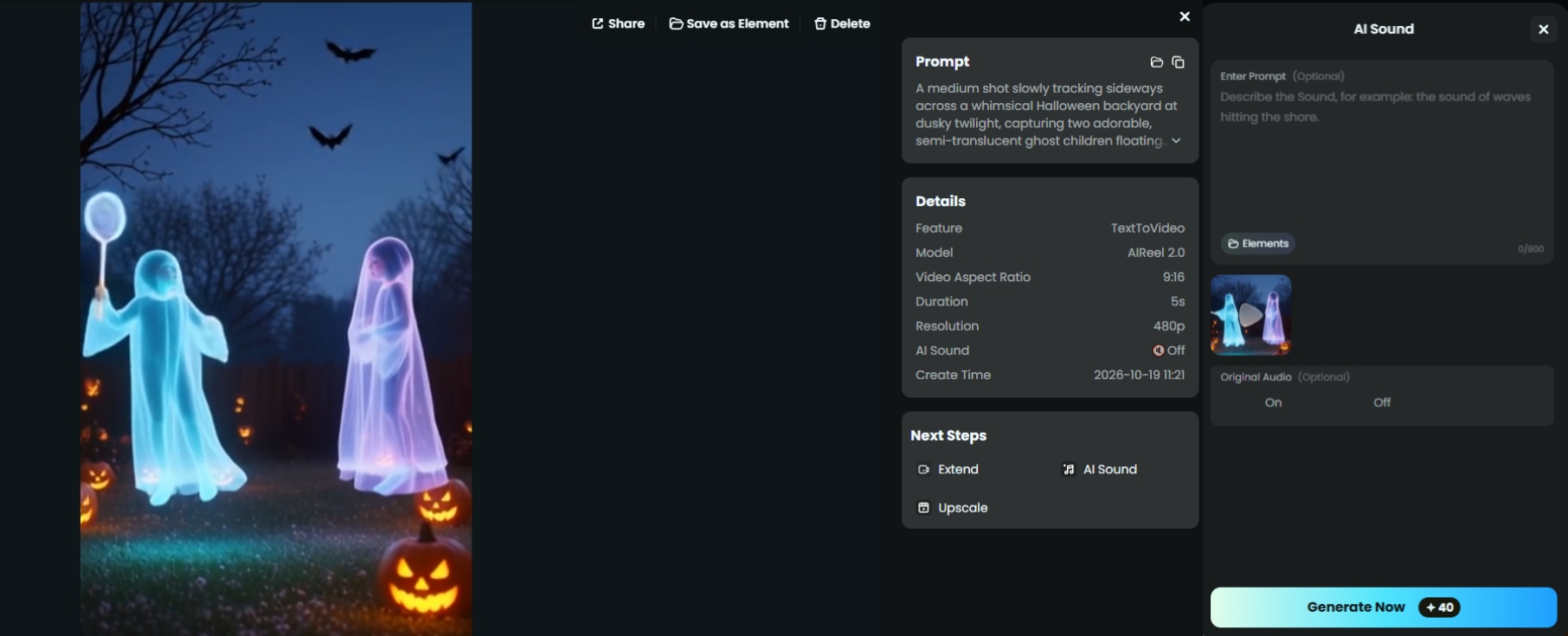
If you didn't enable AI Sound before generating the Halloween video, simply open your work and check the right-hand panel. You'll find your prompt, generation settings, and available next steps, including the option to add AI-generated sound. Adding additional audio instructions is optional.
Step 2: Add Your Custom Prompt
Write a prompt that tells AI what should happen in the video. For an AI Halloween trend, you can go beyond simply describing a spooky scene and focus on popular transformations, supernatural movements, or character interactions.
Here, we’re going to create A Girl’s Moonlit Broomstick Flight using 480p resolution, a 5-second duration, and no AI Sound. You can start with a simple but clear description of the character, action, setting, atmosphere, and visual details you want in the video, and then click “Enhance” in the bottom-left corner of the input box to polish and expand your prompt. It will adapt your instructions to the platform’s preferred format and narrative flow, helping the final result better match your vision.
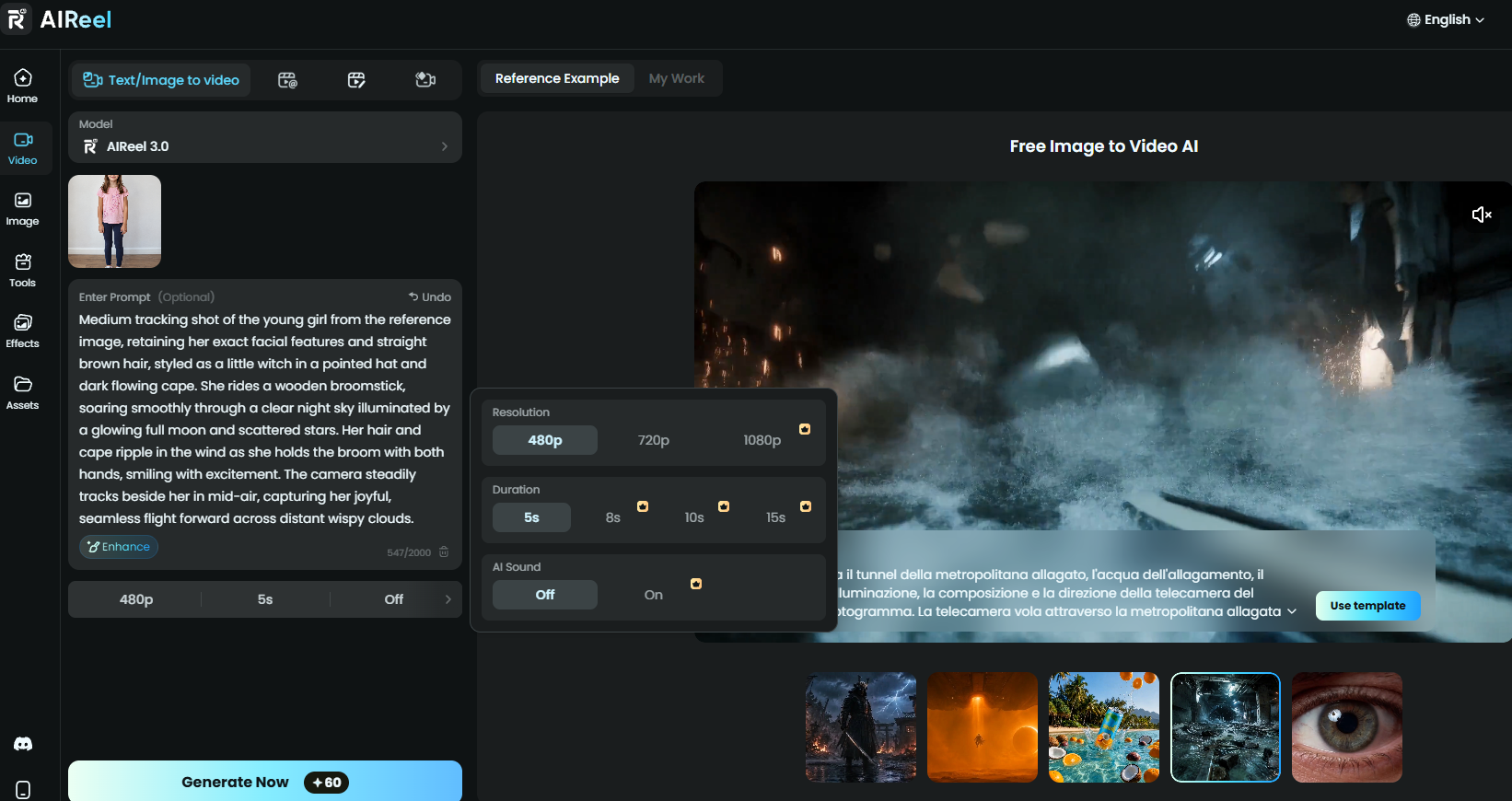
Prompt: Medium tracking shot of the young girl from the reference image, retaining her exact facial features and straight brown hair, styled as a little witch in a pointed hat and dark flowing cape. She rides a wooden broomstick, soaring smoothly through a clear night sky illuminated by a glowing full moon and scattered stars. Her hair and cape ripple in the wind as she holds the broom with both hands, smiling with excitement. The camera steadily tracks beside her in mid-air, capturing her joyful, seamless flight forward across distant wispy clouds.
Mini Tip:
The aspect ratio of your uploaded reference image determines the aspect ratio of the generated video. In this example, AIReel used a 3:4 photo of a girl, so the video was generated in the same ratio. Before creating a video, make sure your reference image matches your desired video aspect ratio.
Step 3: Download and Share Your Halloween Video
New accounts can receive free credits, so you can start by choosing an AI model that requires fewer credits to test your Halloween video. When everything is ready, click “Generate.” Wait a few minutes while AIReel processes your image and prompt. The generation time may vary depending on the AI model, video duration, and complexity of the content.
Once finished, check the result to see whether the character, movements, camera angle, and Halloween effects match your prompt. If you want to explore a different result, you can regenerate the video or open it in Video Edit to make further adjustments.
Finally, you can export the video, share it on social media and enjoy your Halloween creation.
In addition to Text to Video, you can also explore other powerful features in AIReel. Through Reference, the AI Halloween Video Generator recreates the video scene you want. With Frames to Video, you can use frame images to guide the motion and transitions accurately.
3 Halloween AI Video Prompts to Try
See how to create a Halloween video with three AI-enhanced prompts. Each example includes a copy-ready prompt and the resulting video. All videos were generated using the AIReel 3.0 model at 480p resolution, with a 5-second duration.
Halloween Street Zombie Shift
A cozy Halloween street suddenly turns into a horror scene when the character twists into a zombie.
Prompt: Cinematic rear tracking shot. A solitary man walks down a quiet suburban street adorned for Halloween, flanked by glowing carved jack-o'-lanterns and warm orange string lights casting an eerie autumn glow. Ahead, a tall streetlight projects a bright cone of illumination onto the damp pavement, casting his long, distinct shadow stretching out behind him. The camera steadily tracks forward from behind, closing the distance. As the man steps directly under the beam of light, an unnatural convulsion racks his body: his legs twist sickeningly with audible bone-snapping contortions, elongating and bending at impossible, grotesque angles as his heels lift off the ground. His spine arches, his shoulders violently jerk upward, and his silhouette shifts into a terrifying, hunched zombie. The camera pushes in closer to his back, capturing the grotesque deformation of his mutating limbs and tattered clothing under the stark overhead glow, set against the warm festive decorations of the neighborhood.
Customization advice:
Refine the camera distance or lighting contrast to make the zombie reveal clearer and more unsettling.
Moonlit Vampire Frenzy
A dramatic vampire close-up with wild movements, a whipping cape, glowing red eyes, and eerie moonlit fog.
Prompt: Medium close-up shot of a gothic Halloween vampire in a dimly lit, mist-shrouded crypt, captured with a subtle, steady forward push. The vampire’s pale, bloodless face contorts into a feral snarl as he violently and erratically thrashes his head side to side. Tangled dark hair whips fiercely across his sharp features and piercing, blood-red eyes. His upper body and shoulders jerk in rapid, convulsive spasms, causing the heavy black velvet and crimson lining of his high-collared cape to flap frantically in response to the violent motion. A sharp beam of cold moonlight cuts through the gloom, catching the glistening edges of his elongated fangs and casting dramatic, deep shadows across the hollows of his cheeks. Swirling particles of dust and thin tendrils of fog drift chaotically around the frenzied, shuddering silhouette, set against a softly blurred gothic stone background.
Creative Suggestions:
Add a wide shot to establish the misty crypt, then transition to a medium close-up as the vampire begins thrashing to emphasize his terrifying expression and fangs. A gradual camera push-in can heighten the tension and make the final reveal more dramatic.
Puppy Witch Potion
A cute dog dressed as a little witch gently stirs a glowing potion in a witch’s potion room.
Input Image: A square photo of a Labrador
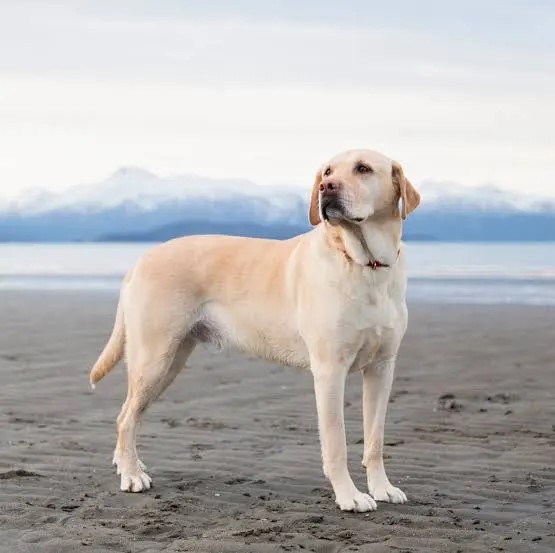
Prompt: A yellow Labrador Retriever with the exact cream coat, features, and build from the reference image, wearing a small pointed black witch hat and a draped purple cape. The dog stands beside a black cast-iron cauldron inside a cozy, dimly lit room decorated with glowing jack-o'-lanterns, flickering candles, and colorful potion bottles bathed in warm orange and mystical purple light.
With a curious and focused expression, the dog gently stirs the swirling, luminous green liquid using a wooden spoon. Bubbles smoothly rise and pop, releasing sparkling lavender smoke that drifts upward and casts glowing reflections onto its face and fur. The camera holds a steady, eye-level medium shot with a very subtle slow push-in, keeping the action centered and clear.
Personalization Ideas:
Swap the background elements for hanging bats, cobwebs, or floating candles to create a different Halloween atmosphere. You can also add subtle puppy actions, such as tilting its head, wagging its tail, or sniffing the bubbling potion to make the scene more lively and adorable.
More AI Halloween Video Ideas Worth Trying
To spark more new ideas, consider these four concepts for AI Halloween videos. Use them as starting points and customize the characters, actions, settings, and visual effects to suit your own style.
Ghost Kids Playing Badminton
Imagine two adorable, footless ghost children floating in a twilight backyard, batting a glowing shuttlecock back and forth above a badminton net. Add magical trails, drifting mist, and playful expressions.
Haunted Room Time Freeze
Create a surreal scene where a character walks through an ordinary room as time suddenly stops. Floating objects, falling papers, and background characters freeze mid-motion while the main character continues moving.
Halloween Harlem Shake
Picture four horror-themed characters in an ordinary hallway suddenly breaking into a chaotic Harlem Shake. Exaggerated head shakes, wild arm swings, and ridiculous group dance moves create a humorous contrast.
The Midnight Candy Storm
Imagine a character opening a mysterious candy box, releasing a swirling storm of sweets. Candies float overhead, circle the character, and form a colorful spiral against a mysterious purple-lit background.
FAQs about AI Halloween Video Generator
How Long Does It Take to Generate an AI Halloween Video?
Generating an AI Halloween video usually takes a few minutes, depending on the AI model, video duration, and complexity of the scene and movements. Simpler effects may finish faster, while detailed transformations or complex actions may take longer. Check the generation progress and allow extra time for more demanding creations.
What Video Aspect Ratios Can I Use for AI Halloween Videos?
Available aspect ratios depend on the selected AI model or effect. Common options include 9:16 for TikTok, Instagram Reels, and YouTube Shorts; 16:9 for YouTube and widescreen videos; 1:1 for square social media posts; and 4:3 for classic-style videos. Choose a ratio that suits your platform and keeps the main subject clearly visible, as not every model supports all ratios.
Which AI Model Is Best for Creating Halloween Videos?
The best AI model depends on the Halloween video you want to create. For realistic character transformations, Kling 4.0 is suitable for photo-based Halloween transformations. We use Seedance 2.5 for more complex movements and multi-character scenes.
Can I Make AI Halloween Videos for Free?
Yes! AIReel offers free credits for new users to try AI Halloween video creation. You can choose an AI model that fits your available credits to generate videos with custom prompts.
Can I Choose the Voice Style for My AI Halloween Video?
You can describe your preferred voice style in the prompt, such as a deep, raspy monster voice or a high-pitched ghost voice. However, the generated voice may not perfectly match your description, as the result depends on the audio capabilities of AI models.
Conclusion
If you want to make Halloween videos with AI easily, there are two simple approaches to choose from: use ready-made templates to recreate trending effects quickly or write custom prompts to create original scenes. From spooky transformations to hilarious Halloween dances, plenty of creative styles are waiting for you to explore.
With AIReel, you can access multiple AI models and versatile tools in one place and experiment with Halloween trends without complicated editing. Sign up for AIReel and start creating your own Halloween videos today!