Drake Burning Bridges AI Tutorial: Recreate Viral Burning Bridges MV Clip
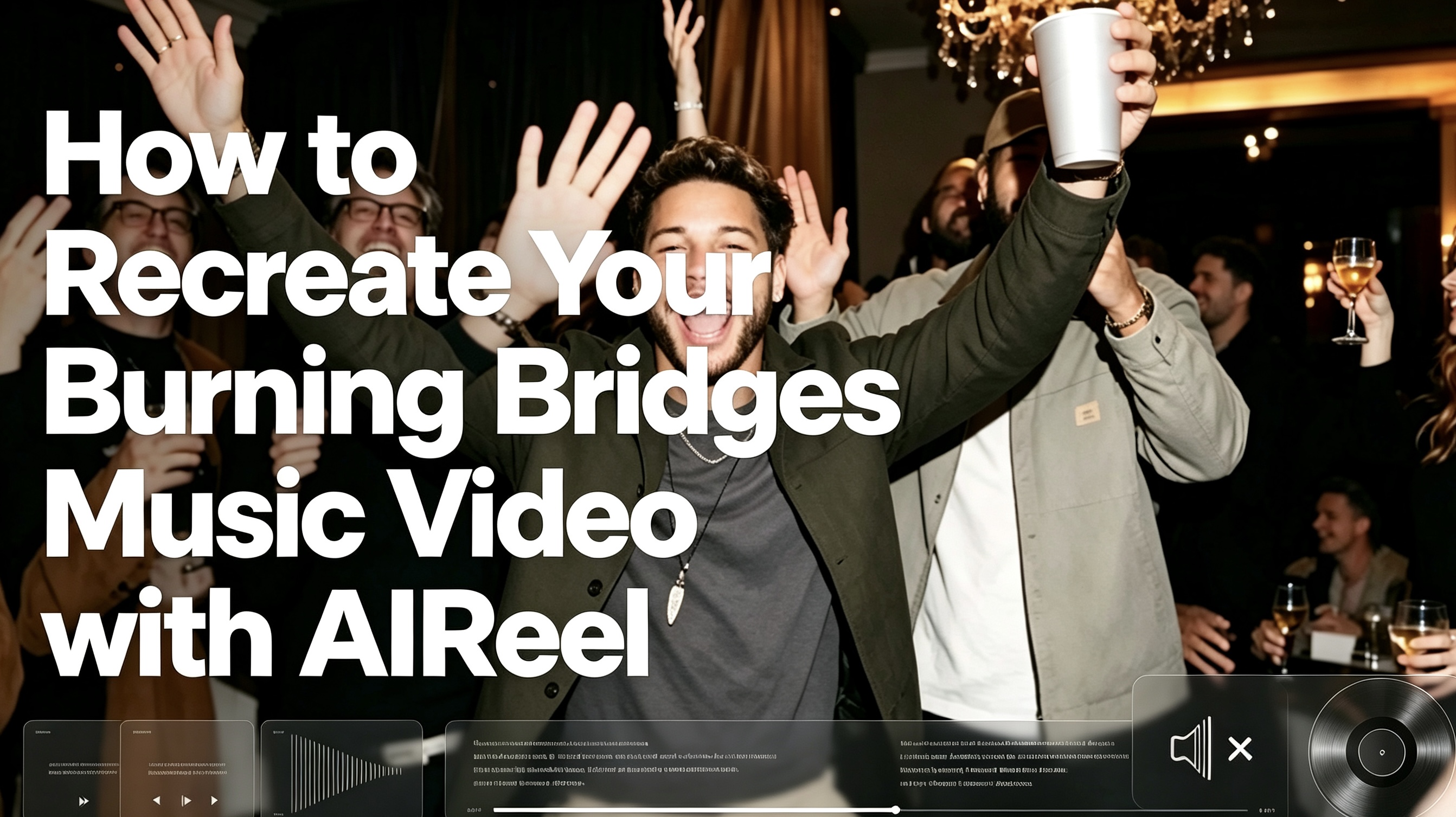
Dim lights, raised glasses, and a controlled intensity fill the Burning Bridges party scene. AIReel’s template places one photo right into that late-night sequence—toasting, facing the camera, moving with the track. The mood stays expensive and understated. Here’s how to make your version.
Table of Content
How to make your Burning Bridges AI video
Step 1: Find the right effect
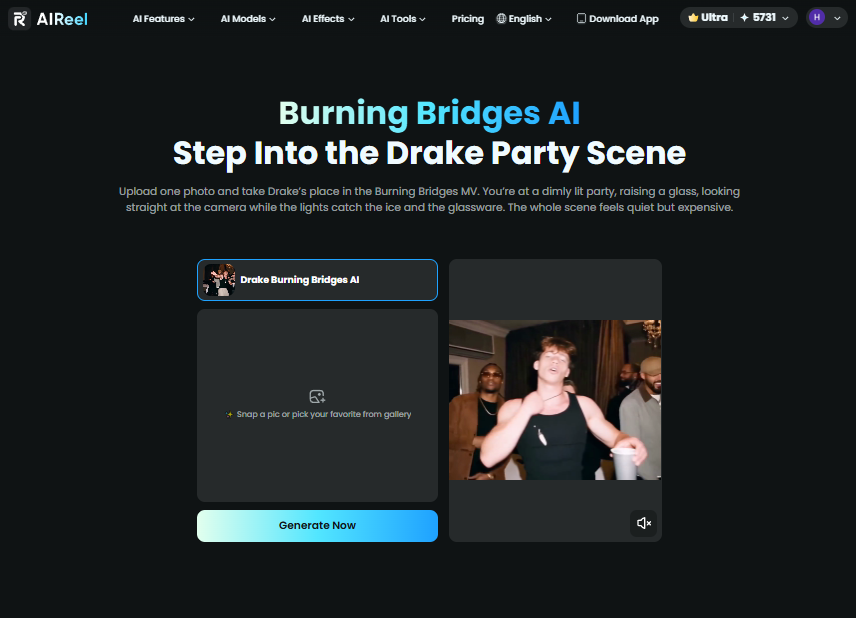
First, head directly to the Burning Bridges AI template on AIReel.
Step 2: Choose your image
Select and upload your image. This effect leans heavily into atmosphere, so a portrait with a stoic or serious expression fits the mood perfectly.
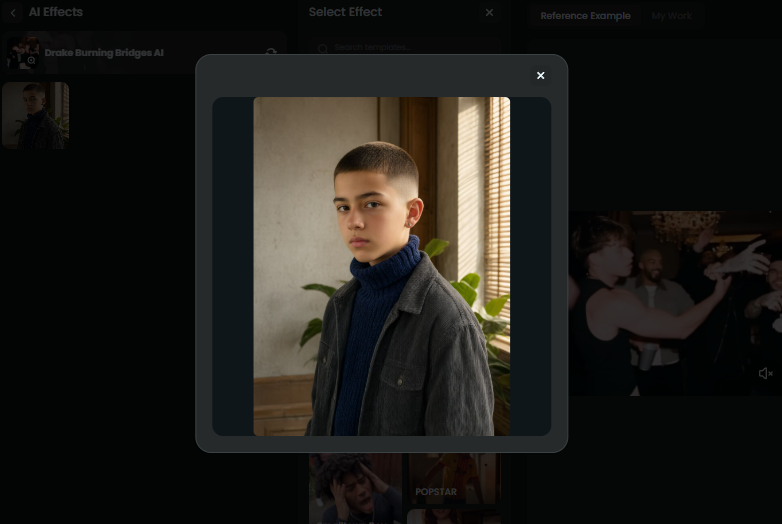
Step 3: Generate and download
Hit generate. The AI will process the image, applying fiery background elements and smooth camera movements. Once the generation is complete, simply download your new video.
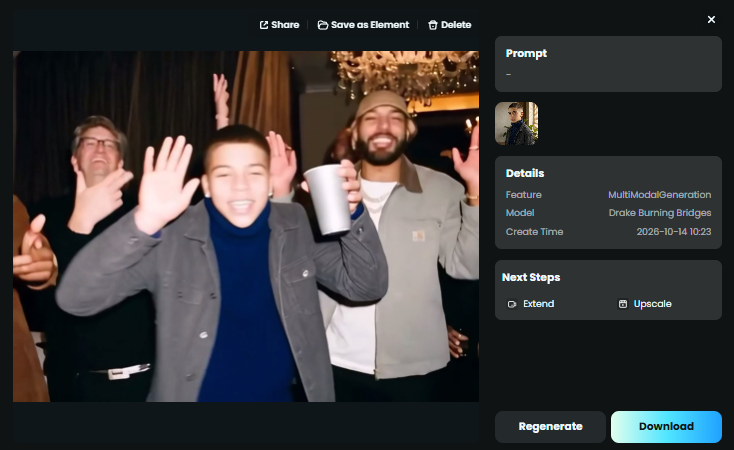
Burning Bridges AI Clip Example
Keys to the Perfect Vibe
-
Lighting choices: Photos taken in low-light environments, or with a strong single light source (like golden hour), blend seamlessly into the dark atmosphere of this template.
-
Subject variety: Human portraits give a traditional music video look. However, using objects—like a sleek car or an empty street corner—can yield a very artistic, abstract result.
-
Prompting details: If you are adding prompts, words like "embers, depth of field, shadows, and cinematic lighting" will help guide the AI to maintain that dramatic tone.
-
Sharing advice: Let the visual do the talking. A simple, thoughtful caption works best here. Don't forget to include hashtags like #AIVideo, #burningbridgesai #burningbridges, #iceman, and so on.
Switch Up the Vibe
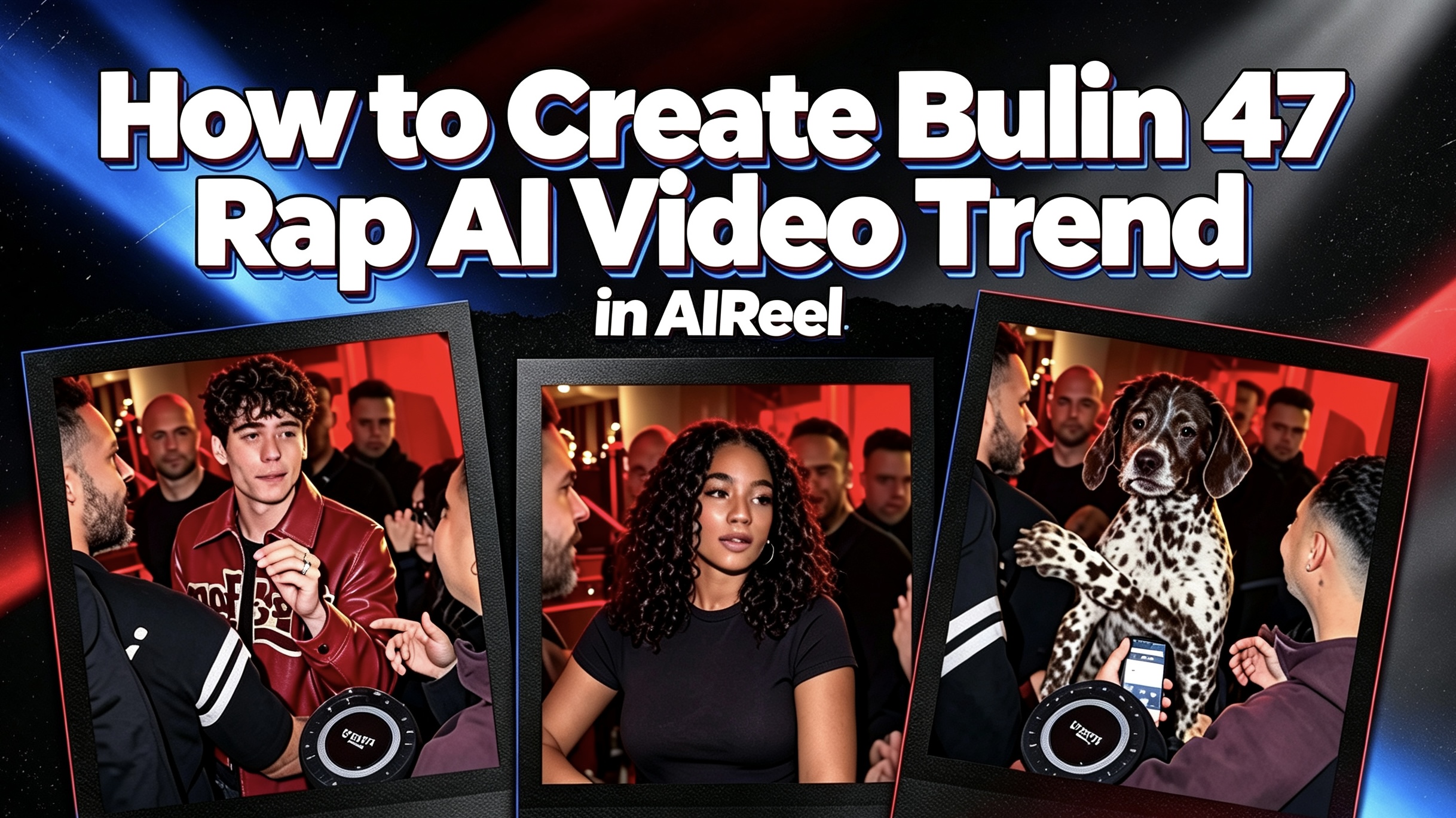
After the party scene, the brighter POPSTAR AI recreation offers a different Drake-era energy. If you want some street freestyle vibe, Bulin 47 Rap is worth a try.
Explore more templates in the effects library, or head to the video editor if you want to further adjust your clip.