How to Make an AI Video with Pictures Easily
Picture to video AI makes it possible to turn still images into short moving clips without filming new footage. You can start with one portrait, product image, landscape, or a set of related photos, then use an AI tool to add camera motion, subject movement, atmosphere, or simple transitions.

Table of Content
The process of AI picture video maker sounds easy, but the quality depends on more than pressing a generate button. If you want to know how to make a video of a picture, the real workflow is about choosing the right image, controlling the motion, reviewing the first output, and deciding when to regenerate instead of over-editing a weak result.
Quick Answer: The Basic Picture to Video AI Workflow
The easiest way to use picture to video AI is to upload a clear image, describe the motion you want, generate a short preview, check for visual errors, and export the best version. If you are learning how to make a video with pictures for the first time, start with subtle camera movement before asking the subject to move dramatically.
| Step | What You Do | What to Watch For |
|---|---|---|
| 1. Choose your picture | Use a clear image with one main subject. | Blur, low resolution, hidden hands, or crowded backgrounds. |
| 2. Pick a motion style | Choose camera motion, subject motion, or background motion. | Too much movement can cause distortion. |
| 3. Write Prompt on picture video maker | Upload the image and enter a short motion prompt. | Some AI models handle portraits better, while others are better for cinematic scenes. |
| 4. Preview AI-generated videos | Create a short AI video from the picture. | Check faces, hands, text, logos, and edges. |
| 5. Export or fix your video | Regenerate, edit, crop, add captions, or export. | Do not spend time polishing a badly warped generation. |
Choose the Right Picture Before You Animate It
A picture video maker can add motion, but it cannot fully repair a weak source image. If the original picture is blurry, dark, crowded, or visually confusing, the AI has to guess what should stay stable and what should move. That guessing is where faces shift, product edges bend, and backgrounds slide unnaturally.
1. Image Clarity and Subject Position
A good source image has a clear subject, visible edges, and enough detail for the AI to understand the scene. Portraits, product photos, food images, travel shots, and simple lifestyle photos often work well because the subject is easy to identify.
If the person is partly hidden, the product is cropped too tightly, or the subject blends into the background, the generated video may invent missing details. This matters especially when you are using picture to video AI for brand visuals, profile clips, or personal memories where identity and shape need to stay consistent.
2. Background Complexity
Simple backgrounds usually create cleaner motion. A plain wall, open sky, studio backdrop, or soft landscape gives the AI fewer details to misread. Busy backgrounds with crowds, shelves, signs, cables, or repeated patterns create more uncertainty.
Complex pictures can still work, but the motion should be conservative. A slow zoom or gentle pan is safer than asking the subject to walk, turn, smile, and interact with the whole scene.
Some pictures already suggest movement. Hair in the wind, a car on a road, clouds over a mountain, steam above food, or a person looking toward the camera gives the AI a natural motion direction.
A practical test is simple: if you can easily imagine the next two seconds after looking at the picture, AI will usually have an easier time creating a believable video.
Decide What Kind of Motion You Want
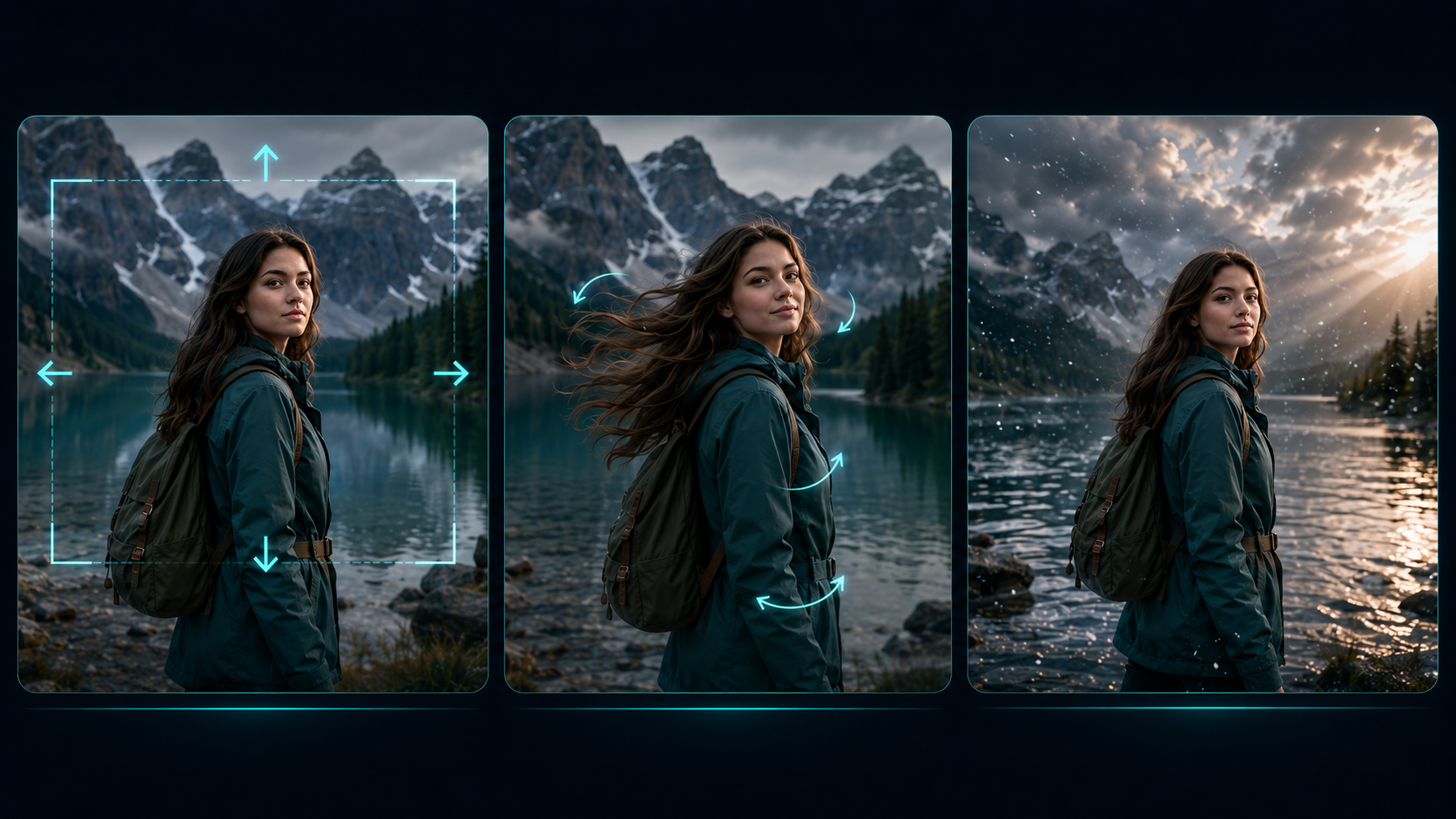
Before using any picture video maker, decide what should move. Poor AI picture-to-video results often happen because the prompt asks for too many movements at once. A still image can become more engaging with only one controlled motion.
1. Camera Motion
Camera motion is usually the safest starting point. Prompts such as slow zoom in, gentle pan left, cinematic push forward, or slight handheld movement can make a picture feel alive without forcing the subject to change too much.
This works well for portraits, products, interiors, food photos, and landscapes. The tradeoff is that the result may feel subtle rather than dramatic, but subtle movement is often cleaner and more professional.
2. Subject Motion
Subject motion means asking the person, animal, object, or character in the image to move. Examples include hair moving in the wind, a person blinking, clothing flowing, a car moving forward, or a character turning slightly.
This can look impressive, but it is also where mistakes appear most often. Faces may change too much. Hands may become unstable. Clothing may move in ways that break the original shape. If consistency matters, use subject motion carefully.
3. Atmosphere and Background Motion
Background and atmosphere motion can make a still image feel cinematic without changing the main subject. Examples include drifting clouds, falling snow, glowing lights, ocean waves, dust in sunlight, or soft background blur.
This is often the best option when you want mood instead of action. It is also safer for product photos, profile images, and campaign visuals where the subject should remain stable.
How to Create a Video Using Pictures with a Better Prompt
If you are learning how to create a video using pictures, your prompt should be short, specific, and controlled. A strong prompt tells the AI what kind of motion to create without asking it to rebuild the whole scene.
Subject + motion + camera movement + mood + quality boundary.
For example:
A woman in a red coat stands in the city at night. Her hair moves slightly in the wind while the camera slowly pushes in. Cinematic lighting, natural motion, realistic face, no distortion.
The final quality boundary matters. Phrases such as natural motion, subtle movement, stable face, realistic hands, clean product edges, and no warping can help guide the result, even though they cannot guarantee perfection.
Prompt Examples for Different Types of Picture
| Image Type | Prompt Direction | Why It Works |
|---|---|---|
| Portrait | Slow camera push in, subtle blinking, soft hair movement. | Keeps the face mostly stable while adding life. |
| Product | Gentle rotating light, slight camera pan, clean studio motion. | Adds polish without changing the product shape. |
| Landscape | Clouds drifting, water moving, slow cinematic zoom. | Uses natural background motion instead of forced action. |
| Food | Steam rising, slow push in, warm lighting. | Makes the image feel fresh without distorting the dish. |
| Fantasy artwork | Glowing particles, cape movement, dramatic camera tilt. | Allows more stylized movement where strict realism matters less. |
Prompt Mistakes That Create Strange Results
The most common mistake is asking for a full scene transformation from one picture. A prompt like make the person walk through the street, wave, smile, turn around, and have the camera fly around them sounds exciting, but it gives the AI too many uncertain tasks.
Another mistake is mixing incompatible effects. If you ask a product photo to rotate, explode into particles, change color, and sit on a moving background, the result may look unstable. If you need several effects, create a simpler AI video first and add extra effects later in an editor.
Generate, Review, and Fix the AI Video from Pictures
After you enter your prompt, generate a short preview. Watch the entire clip, not just the first second. Many AI videos look good at the start but break near the end when the model has to continue motion.
What to Check in the First Preview
Start with the subject. In portraits, check whether the face remains recognizable. In product videos, check whether the shape, logo, packaging text, and edges stay stable. In landscapes, check whether clouds, water, and objects move naturally.
Then check the background. A video may look clean in the center but fail around the edges. Watch for warped walls, floating objects, broken text, changing fingers, unstable jewelry, or unnatural shadows.
When to Regenerate Instead of Editing
Regenerate when the core motion is wrong. If the face changes too much, the product shape is damaged, or the subject moves in an impossible way, editing the clip afterward usually wastes time. It is faster to simplify the prompt and generate again.
Edit when the video is mostly correct but needs polish. Small cuts, music, captions, color correction, speed changes, and cropping can improve a good generation. They cannot fully rescue a broken one.
How to Polish the Clip After Export
After exporting, use basic editing to make the AI video feel intentional. Trim weak frames at the beginning or end. Add music if the clip is for social media. Use captions or text overlays when the video needs context. Crop for the platform before publishing.
For many short posts, a clean three-second video is better than a longer clip with visible errors. Picture to video AI works best when the final result feels focused rather than stretched.
Best Use Cases for an AI Picture Video Maker
The best picture-to-video results usually come from images that already have something worth looking at. The AI is just there to add a bit of movement, not to turn a weak picture into a full video scene. Think of it as giving a still image a second life, not asking it to become a movie.
Social Media Posts
This is probably the most obvious use case. A nice travel photo, outfit shot, food picture, or portrait can feel a little flat when it sits still in a crowded feed. A slow push-in, a bit of moving light, hair shifting in the wind, or even a subtle AI smile effect can make the image feel more alive without changing the whole idea.
The trick is not to overdo it. Most social clips only need one small movement that people notice quickly. Once the motion starts competing with the subject, the video starts to feel more like an effect demo than a post someone would actually stop for.
Marketing Visuals
Picture video makers are also helpful when you have good product or campaign images but no matching video assets. A product photo can become a short ad visual with a camera pan, a light sweep, or a clean background movement. If the original image needs a cleaner setting first, even a simple AI background changer can help before animation. That is often enough for a landing page section, a product teaser, or a simple paid social creative.
Product images need more caution than lifestyle images. Logos, labels, packaging edges, and brand colors should not shift around. If the AI makes a bottle slightly bend, changes a label, or blurs important text, the clip may look polished for half a second but still be unusable.
Personal Memories
Old portraits and family photos can be surprisingly effective with very gentle motion. A slow camera move, a soft blink, or a background that feels slightly alive can make the photo feel warmer without making it look fake.
This is also the area where restraint matters most. When the original face is blurry, damaged, or partly hidden, stronger motion can change the person’s expression or features in a way that feels off. For personal photos, a quiet result is usually better than a dramatic one.
Creative Storytelling
For mood boards, character concepts, fantasy scenes, game environments, or story ideas, picture-to-video AI is useful as a quick visual test. You can see whether a scene feels calm, tense, magical, cinematic, or strange before spending time building a bigger video.
This is where more stylized motion can work well. Clouds can move faster, particles can glow, light can sweep across the frame, and a subtle AI 2D to 3D effect can make flat artwork feel more layered before the camera starts to move. The only thing to avoid is asking everything to move at once. Even in a fantasy scene, one clear motion usually looks better than five competing ones.
What Picture to Video AI Still Struggles With
The use cases above work best when the image is clear and the motion stays controlled. Once the prompt asks for too much movement, picture to video AI becomes harder to predict. It does not really know what happened before or after the photo, so complex actions like walking, dancing, turning around, or changing expressions can be difficult to control from one still image.
Faces, hands, logos, clothing details, and small text also need extra attention. The more the subject moves, the more likely these details are to shift, blur, or change shape. If accuracy matters, keep the motion small and generate a few versions before choosing the final clip.
A useful rule is to choose the most usable result, not the most dramatic one. If the AI changes the core identity of the image, regenerate with a simpler prompt instead of trying to repair every mistake manually. Editing should polish a good result, not rescue a broken one.
You should also use images you own, created yourself, licensed properly, or have permission to use. Turning a picture into an AI video does not remove copyright, consent, or brand usage concerns.
A Simpler Workflow for Making Picture Videos Faster
HOTOnce you start making more than one picture video with AI, the slow part is usually not the upload itself. It is the guessing: how to write the prompt, which model to choose, whether the motion should be subtle or dramatic, and when to regenerate instead of adjusting the same result again.
If you do not want to spend too much time testing prompts, comparing tools, and regenerating the same picture in different AI models, AIReel can make the picture to video AI workflow much easier. Instead of treating image animation as a manual trial-and-error process, AIReel helps simplify the steps from picture upload to final video generation.
One useful advantage is prompt optimization. When you describe the video you want, AIReel can help refine the prompt so the motion direction is clearer and easier for AI video models to understand. This is helpful for beginners who know the result they want but are not sure how to write a strong picture-to-video prompt.
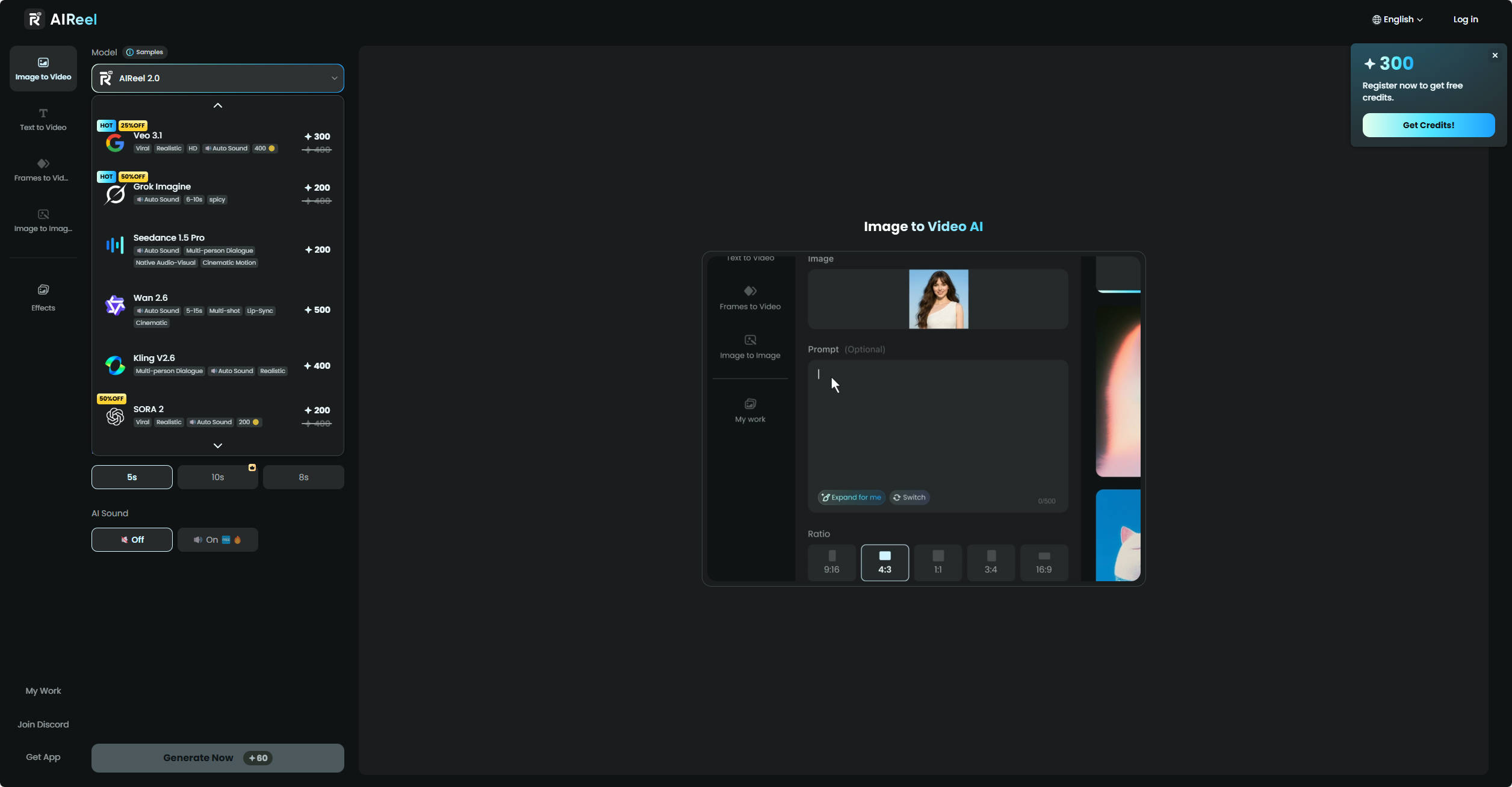
AIReel also integrates multiple AI models, which can reduce the pressure of choosing the right model manually. Different models may perform better for different scenes, such as portraits, product shots, cinematic landscapes, stylized artwork, or social media clips. AIReel helps guide the workflow toward a more suitable model instead of making you test every option one by one.
For users who want a faster starting point, AIReel also provides many preset templates, such as AI World Cup, AI kiss, AI ASMR, AI ager and AI baby, which are useful when you need to create a video using pictures for social media, marketing visuals, personal memories, or creative storytelling but do not want to build every motion idea from scratch.
| Workflow Problem | How AIReel Helps | Why It Matters |
|---|---|---|
| You are not sure how to write the prompt. | AIReel helps optimize the prompt for clearer motion instructions. | Better prompts usually reduce strange motion and unnecessary retries. |
| You do not know which AI model to use. | AIReel integrates multiple AI models and helps match the workflow to the scene. | Different picture types may need different model strengths. |
| You want to make videos quickly. | AIReel offers preset templates for common picture video use cases. | Templates reduce setup time and make the first result easier to control. |
| You are creating content for different scenarios. | AIReel supports workflows for portraits, products, social posts, memories, and creative clips. | You can start from a more relevant structure instead of using one generic workflow. |
AIReel is especially useful if your goal is not just to learn how to make a video of a picture once, but to create picture videos repeatedly with less setup cost. You still need to review the final output carefully, but the tool can shorten the path between your original image, the right prompt, a suitable model, and a usable video result.
FAQs about Picture to Video AI
What is picture to video AI?
Picture to video AI is a type of tool that turns a still image into a short moving clip. It can add camera movement, subject motion, background animation, or atmosphere based on the image and prompt you provide.
What is the easiest way to make a video from a picture?
The easiest way is to use a picture video maker, upload one clear image, add a simple motion prompt, generate a preview, and export the result. Beginners should start with slow camera movement instead of complex subject movement.
How do I make a video with pictures instead of one picture?
You do not have to make the whole video from one image. A cleaner approach is to turn several pictures into short clips and stitch them together. If you want more control, you can use a first-and-last-frame setup to guide where the motion starts and ends, or add reference images so the style, character, or scene stays closer across different shots. This usually feels more natural than stretching one picture into a long video.
How do I create a video using pictures for social media?
Pick the image format first, such as vertical for Reels or TikTok and square for some feed posts. Then keep the motion short and obvious: one camera move, one small subject movement, or one background effect. Add captions only if they help the post make sense without sound.
Why does my AI video look distorted?
Distortion usually happens when the image is unclear, the background is too complex, or the prompt asks for too much movement. Faces, hands, text, logos, and product edges are especially likely to break when the motion is too strong.
Conclusion
Learning how to make a video of a picture is less about finding one perfect prompt and more about controlling uncertainty. Start with a clear image, choose one main type of motion, write a simple prompt, and review the preview carefully.
Once you have a version that holds up, you can test a different motion, try another AI model, or use it as part of a longer picture video. The process gets easier when you treat each AI picture-to-video generation as a small visual test instead of expecting the first prompt to solve everything.